TextBoxes example
This example demonstrates how to add various text boxes with different fonts, alignments, colors, and formatting using the TextBox shape from the pptx-shapes library.
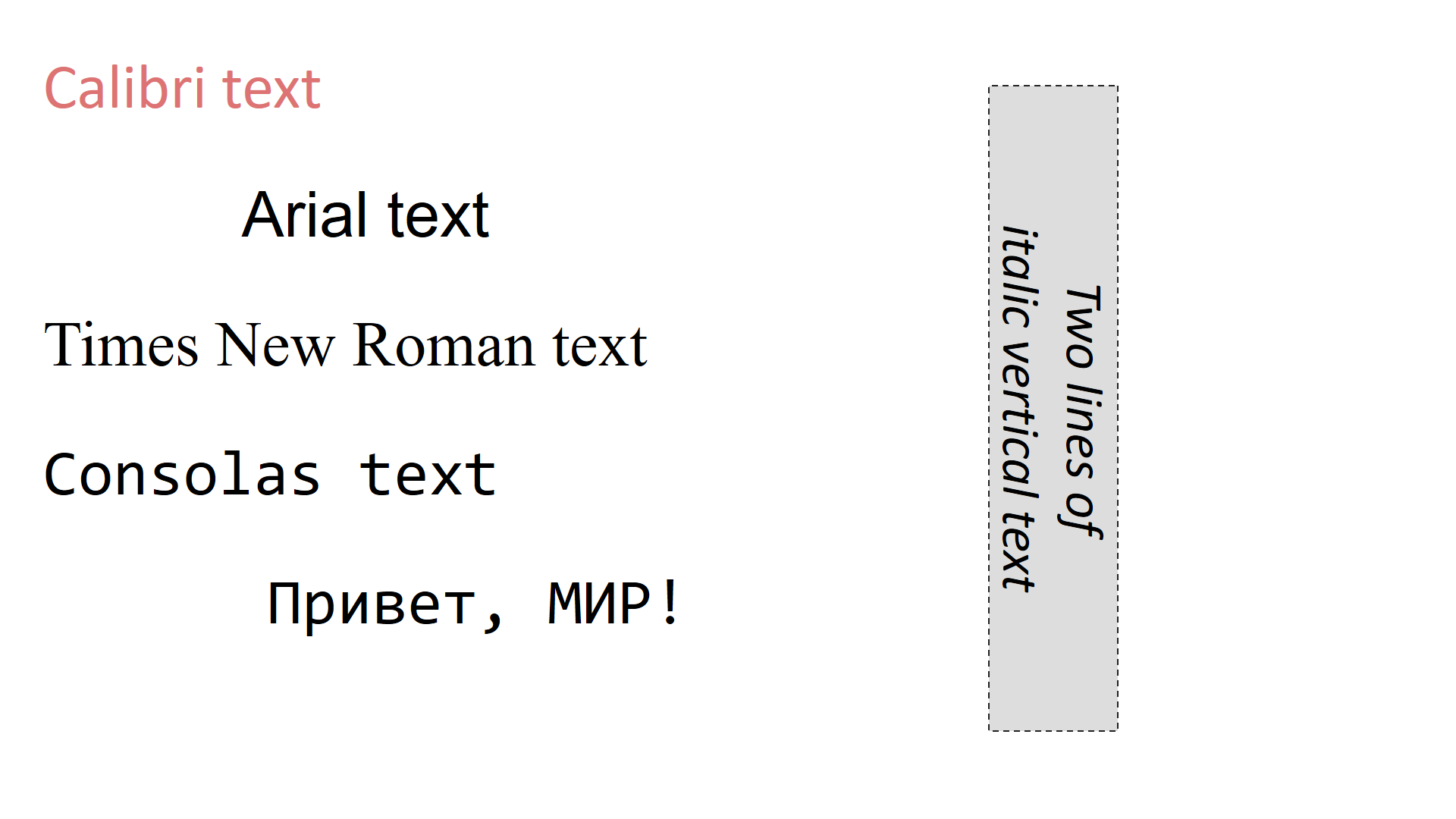
It includes: - Support for different font families (Calibri, Arial, Times New Roman, Consolas) - Alignment options (left, center, right) - Multiline text with rotation - Fill and stroke styling
Example Code
 1from pptx_shapes import Presentation
 2from pptx_shapes.enums import Align, LineDash
 3from pptx_shapes.shapes import TextBox
 4from pptx_shapes.style import FillStyle, FontFormat, FontStyle, StrokeStyle
 5
 6
 7def main() -> None:
 8    with Presentation(presentation_path="empty.pptx") as presentation:
 9        presentation.add(shape=TextBox(x=1, y=1, width=15, height=2, text="Calibri text", style=FontStyle(size=42, family="Calibri", align=Align.LEFT, color="#dd7373")))
10        presentation.add(shape=TextBox(x=1, y=4, width=15, height=2, text="Arial text", style=FontStyle(size=42, family="Arial", align=Align.CENTER)))
11        presentation.add(shape=TextBox(x=1, y=7, width=15, height=2, text="Times New Roman text", style=FontStyle(size=42, family="Times New Roman", align=Align.LEFT)))
12        presentation.add(shape=TextBox(x=1, y=10, width=15, height=2, text="Consolas text", style=FontStyle(size=42, family="Consolas", align=Align.LEFT)))
13        presentation.add(shape=TextBox(x=1, y=13, width=15, height=2, text="Привет, МИР!", style=FontStyle(size=42, family="Consolas", align=Align.RIGHT)))
14
15        presentation.add(shape=TextBox(
16            x=17, y=8,
17            width=15, height=3,
18            text="Two lines of\nitalic vertical text",
19            angle=90,
20            style=FontStyle(size=35),
21            formatting=FontFormat(italic=True),
22            fill=FillStyle(color="#ddd"),
23            stroke=StrokeStyle(color="#222", dash=LineDash.DASHED)
24        ))
25
26        presentation.save("text_boxes.pptx")
27
28
29if __name__ == "__main__":
30    main()